Loading and Executing a RAMM Machine Language Program
A RAMM program begins with the first instruction loaded into memory location
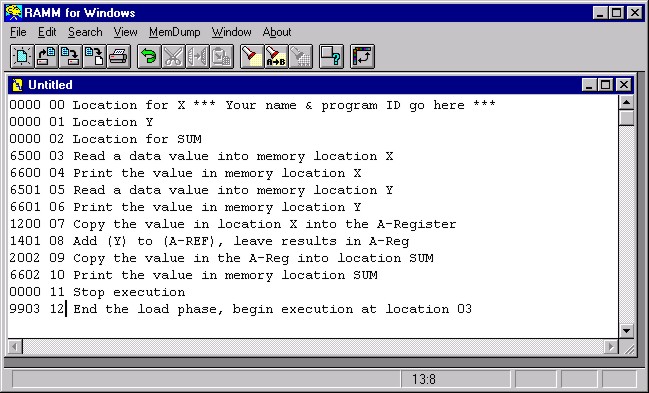
00 and ends with a 99 (END) instruction. The 99 or END instruction must be the last instruction in the program. To load a RAMM machine language program you should activate the RAMM Computer from the Start/Programs menu on the campus network. Choose File/New to pull up an Untitled text window. Type in the RAMM machine language program, beginning each instruction in the first column of a new line (Figure 1). Save the file to your disk with File/Save/labname.RAM or File/Save As…/labname.RAM.
Figure 1
Once the Untitled bar has changed to a file name with the extension RAM the Menu options at the top now offer the choices Run, Load and Options in addition to others offered before the file in the active window was identified as a ".RAM" file (Figure 2).
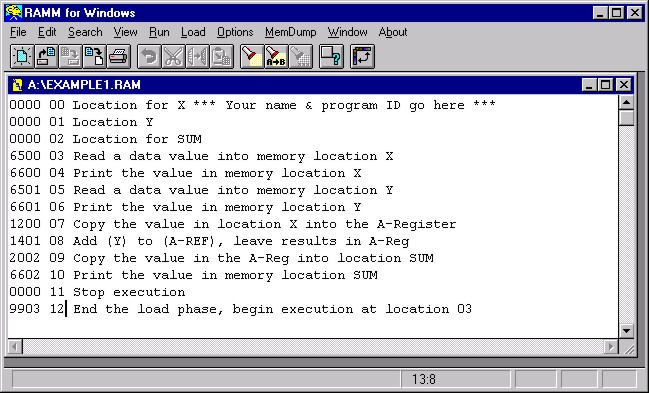
Figure 2
Select Memory Dump at the top of the window to see that the RAMM Computer memory contains random values, not the instructions given in your program, Example1.RAM (Figure 3).
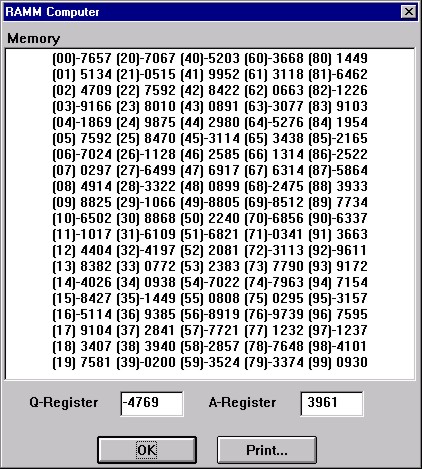
Figure 3
Now select Load at the top of the window to cause your instructions to be stored in the RAMM Computer memory. Note that the "Load Successful" message (Figure 4) gives other important information. It indicates that at location
12 of the program a 99 operation code was found and loaded. The operand of that instruction indicated that execution of the program should begin at memory location 03.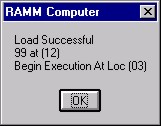
Figure 4
If you select Memory Dump after loading your program A:\Example1.RAM you will see that your program has been placed in the RAMM Computer Memory, beginning at location
00 and ending at location 12 (Figure 5).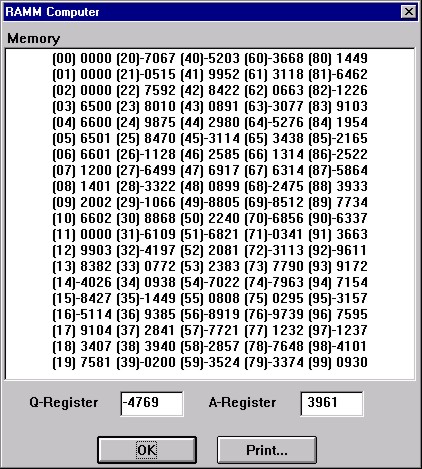
Figure 5
Choosing Run will cause your program to be executed. If you have one or more READ (
65yy) instructions in your program, a dialogue box should appear asking you to enter a data value to be used for each READ instruction encountered (Figure 6). I have typed in the data value 0527 in this case.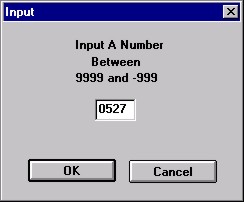
Figure 6
When asked for the second number, I typed in the data value
-010. The expected result should be 0517 because my Example1.RAM program was to add the two values read in and then print their sum.Note that the Output (Figure 7) window shows the values printed out with their corresponding memory locations given in parentheses. It also indicates the instruction that caused execution to stop. A
00 operation code is a legal halt. Any other two-digit value that is not a legitimate RAMM op code would have been treated as an illegal halt. In either case, the memory location containing the instruction causing the halt is given. The number of instructions executed is also given. This value can be greater than the total number of instructions in the program and even greater than the total number of locations in memory because loops can reuse instructions.Note that your program has changed the first three locations in memory. They were set up to hold variable values that did indeed vary. Your instructions did not, however, change. Only the first
13 locations (00-12) were of interest to us in this program. The other memory locations continue to have "garbage" in them.Printing the Output Window or the Memory Contents after running your program can be accomplished by clicking on the Print button for either choice.
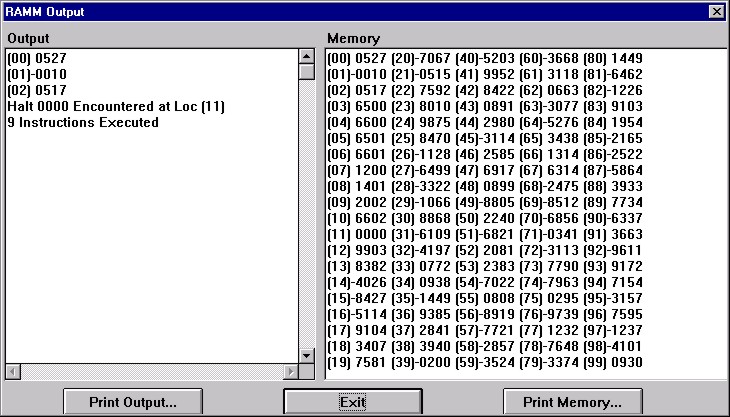
Figure 7
Creating a Data File
If there are many data values to be read by a particular program it may be desirable to create a data file containing those values and to indicate that data file in the Options Window (Figure 8). Choose Options from the list at the top of the RAMM Computer Window. Click on the box beside DataSet. Then type in the name of the data file you wish to use for the program that is to be executed next.
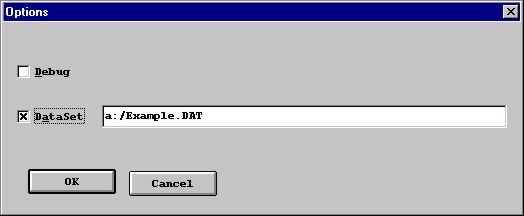
Figure 8
To create a data file, choose File/New. Type in the data values, one per line, beginning each line in column 1 and using only the first four columns. No blanks are allowed. Use leading zeroes as needed to enter values between -999 and 9999, inclusive. (Figure 9) Save the file, explicitly typing in an extension of DAT. Now you are ready to click on the window containing your RAMM program to activate it or to open the .RAM file containing your program. When you run your program, each read instruction encountered will cause one value to be brought in from the designated data file.
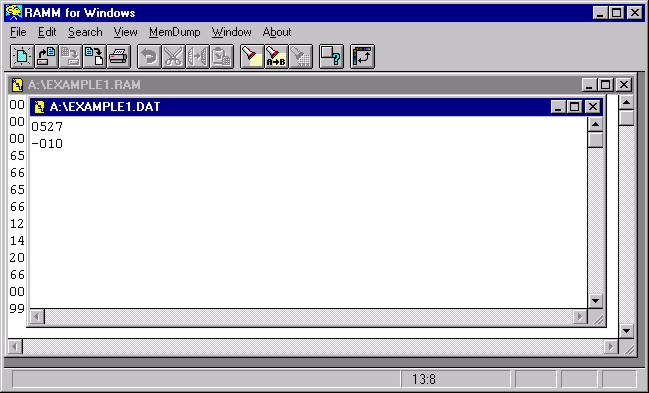
Figure 9