RAMM Assembly Language
Assembling,
Loading and Executing a RAMM Assembly Language Program
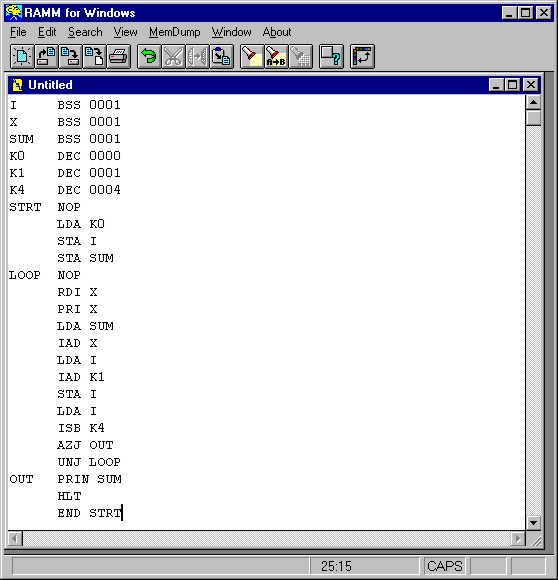
To create a RAMM assembly language program you should activate the RAMM Computer from the Start/Programs menu on the campus network. Choose File/New to pull up an Untitled text window. Type in the RAMM assembly language program (Figure 11), beginning each instruction in the first column of a new line and using blanks to pad the instruction so that each field falls in its required columns. Save the file to your disk with File/Save/labname.ASM or File/Save As…/labname.ASM.
Figure 11
Note in Figure 12 that the choices at the top of the screen have increased to include Run, Load, Asm (because the file has the extension .ASM), and Options. Each assembly language program must be processed through three phases: assemble, load, and execute. First, the assembly language source code must be
assembled (translated) into machine language object code. Second, the machine language object code must be loaded into the main memory of the RAMM Computer. Third, the machine language code that is in main memory can be executed (run) so that the required processing can take place. It is during this third phase that any input values are read in from the keyboard or from a dataset file (previously created, stored and named under Options) and that output is produced. The third phase may be repeated during a session without explicitly stepping through another assembly or load phase as long as no other program has been loaded into the RAMM main memory.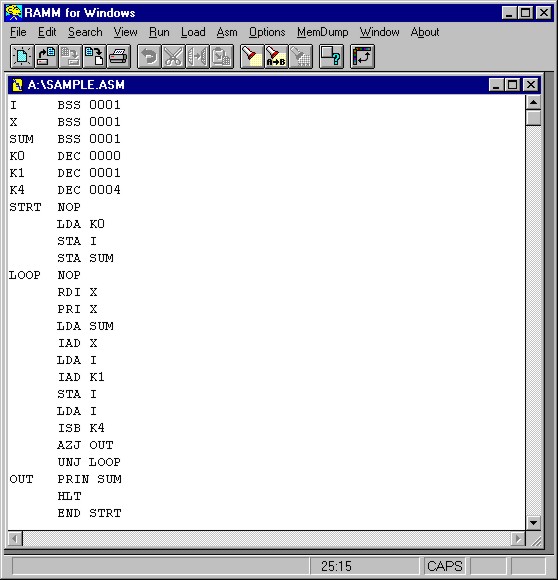
Figure 12
After the first phase has been accomplished by selecting Asm at the top of the screen, the source code and object code will be displayed in a window like Figure 13. Note the different columns of information provided in this screen. The ERROR column should be empty. Be sure to scroll down in the window to view the rest of the code. Errors are identified by character codes that can sometimes be associated with the instruction field containing the error. Some errors may be caused by a problem in a prior statement. Note the column identification shown for the source code by LLLLBBOOOBAAAASNBBB. That gridline can often help a programmer spot an alignment problem (for example, OP codes in the wrong columns).
It is instructional to notice that the contents of memory locations set up with the BSS pseudo-operation code contain unknown values illustrated by ????. Note also in this program that Line Number 12 shows us that the assembly language code RDI X has been translated into the machine language code 6501 and will be loaded into main memory location 11 during the next phase when we choose Load.
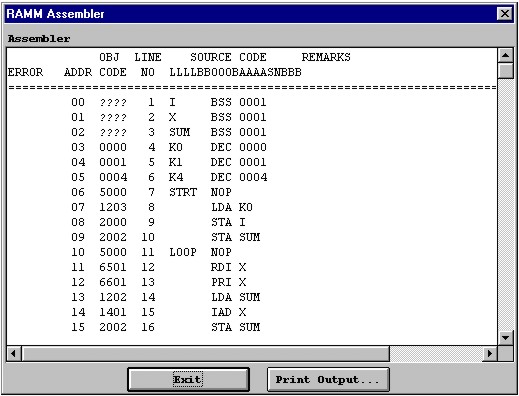
Figure 13
Printing the output from the assembly phase can be helpful for debugging the source code (correcting the errors). Return to the text file to correct the assembly language code. (Save the changed file.) Repeat the assembly phase. Once the assembly phase shows that the ERROR column is empty a final printing of the successful assembly provides a copy of both the assembly language and the corresponding machine language versions of the program.
The next phase is the Load phase. Return to the text file after finishing a successful assembly. Choose Load. A request for Memory Dump will produce the window in Figure 14. The values in memory locations 00, 01, and 02 for your program will probably not match the values shown in Figure 14 for those locations, however, because the BSS operation code does not place a value in a memory location. The BSS operation code just reserves the requested number of memory locations.
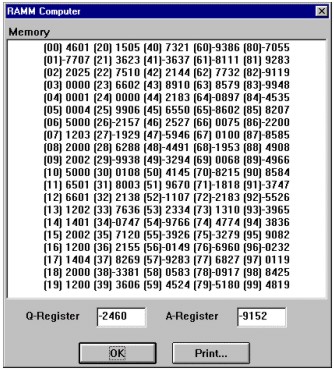
Figure 14
Return to the text file and choose Run to activate the third phase (execution). At this point, a dialog box will appear (Figure 15) requesting the first data value. A total of four data values should be requested for this current example that was to read four data values, print them and print their sum.
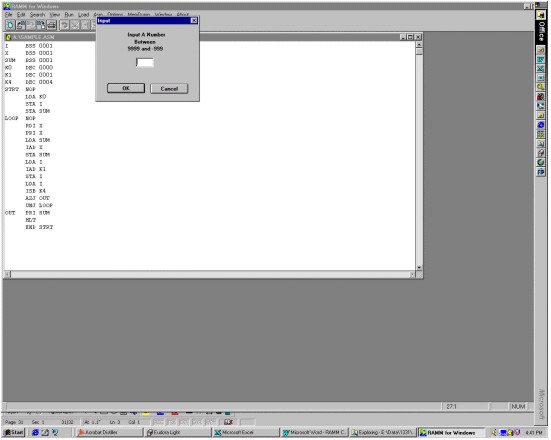
Figure 15
Final results of the sample program are shown in Figure 16.
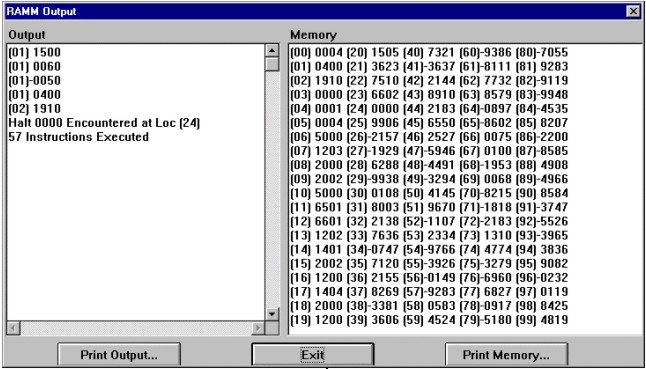
Figure 16